Team and workspaces
Switch workspaces
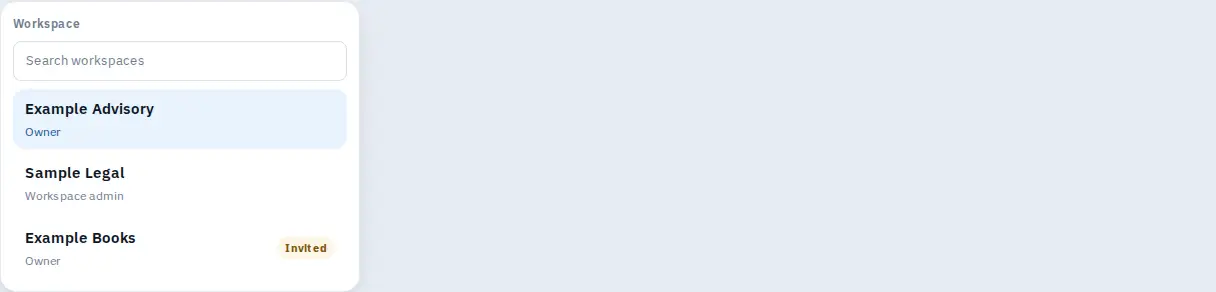
The workspace switcher sits at the top right. Search for a workspace, or open an invite. The Workspaces page itself returns you to the dashboard.
Updated 6 October 2026
If you are an owner or a workspace admin on more than one team, you change team from the switcher at the top right of the header. You use the same email login. You do not get a second password.
The closed button shows the workspace name, or Workspace if none is selected. There is no separate agency login page.
Switch
- 1
Sign in with the email that was invited to each team.
- 2
Select the workspace name at the top right.
- 3
Type in Search workspaces if the list is long.
- 4
Choose a workspace. The subtitle on each row is Owner or Workspace admin.
- 5
The dashboard reloads for that team. Links in the sidebar keep you in the team you picked.
A row badged Invited is not active yet. Choosing it opens Join a team so you can confirm. See Add or remove a team member.
If the search matches nothing, you see No workspaces match. If the switch fails, a short error appears under the menu. Try it again from the same menu.
Opening Workspaces in the address bar sends you back to the dashboard. The switcher is the control. It is not a separate page.
Why is a team missing?
You are not an owner or workspace admin there, the invite is still waiting, or the search box is filtering it out. Clear the search and look for an Invited badge.
Do verifications move when I switch?
No. Switching only changes which team you are looking at. Each team keeps its own verifications, credits, and payouts.